
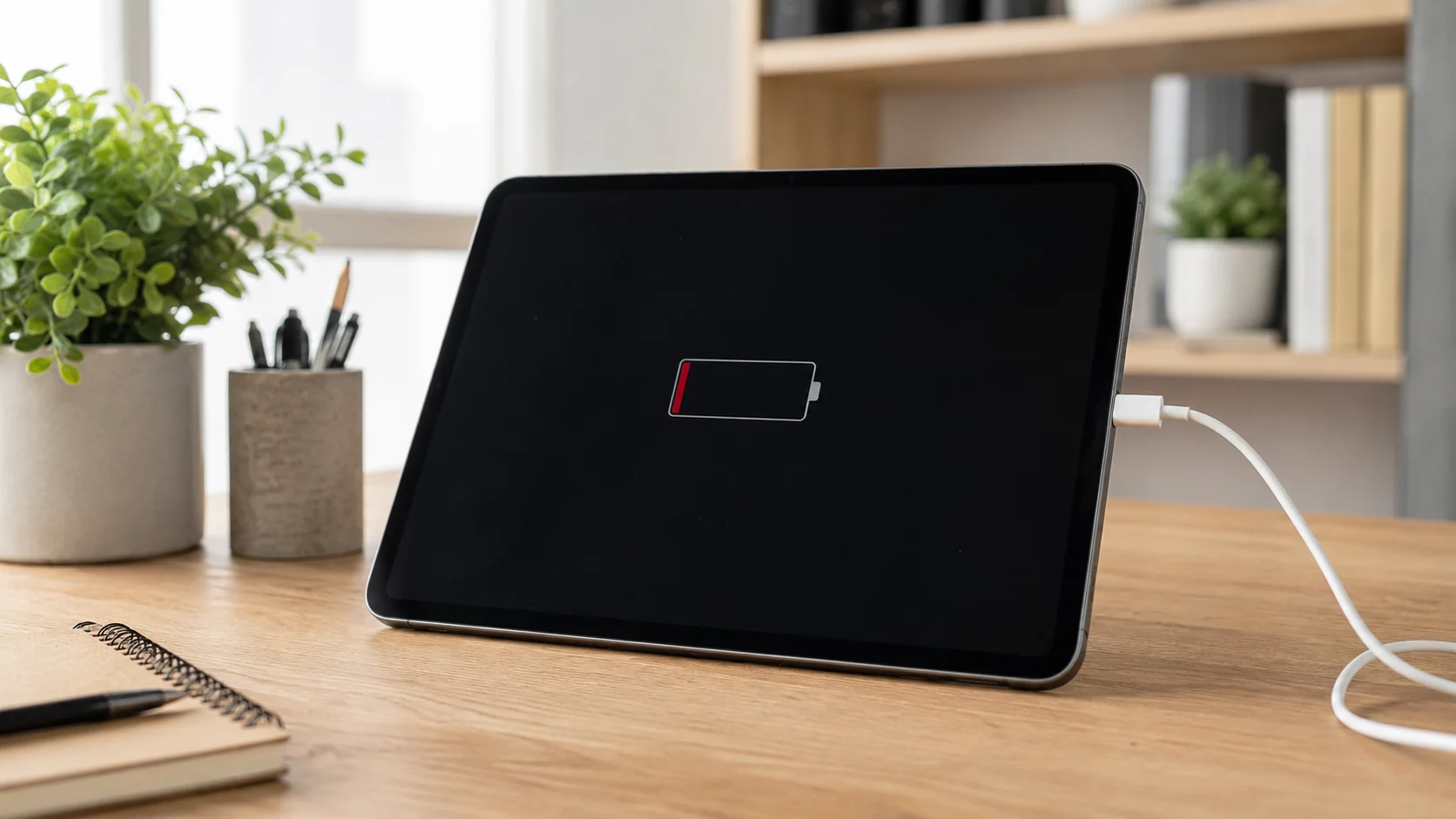
You plug your iPad in at the end of the day and expect the battery percentage to start climbing. Instead, nothing happens. Maybe the charging symbol appears and disappears, the cable only works when held at a certain angle, or the iPad stays connected for an hour without gaining much power.
An iPad that will not charge does not automatically need a new charging port. The problem could be as simple as a damaged cable or weak power adapter. It could also involve debris inside the port, battery deterioration, temperature protection, liquid exposure, software problems, or an internal charging component.
The symptoms often overlap, which is why replacing parts before diagnosing the problem can lead to unnecessary repairs.
This guide explains the most common reasons an iPad stops charging, how to tell a charging-port problem from a battery problem, what you can safely test yourself, and when professional diagnosis is recommended. Profix Cell provides professional iPad repair in Toronto for charging, battery, screen, power, and other hardware problems.
First, Is the iPad Actually Not Charging?
When an iPad is charging normally, you should see a lightning bolt beside the battery icon or a charging indicator on the Lock Screen.
If the battery is completely drained, however, the iPad may not turn on immediately after you connect a charger. A deeply discharged battery can need some time before there is enough power to start the device.
Apple recommends connecting the iPad to an appropriate charging cable and power source, trying a different cable or adapter if necessary, and force restarting the device if it still does not charge. You can review Apple’s current guidance in If your iPad won’t charge.
Before assuming the charging port has failed, give the iPad enough time to respond and rule out the easiest causes first.
Common Reasons an iPad Will Not Charge
| Possible Cause | Common Symptoms |
|---|---|
| Damaged charging cable | Charging cuts in and out, or another cable works normally. |
| Faulty or underpowered adapter | The iPad charges very slowly or not at all from a particular charger. |
| Debris inside charging port | The connector does not fit fully or feels unusually loose. |
| Damaged charging port | Charging works only at an angle or disconnects when the cable moves. |
| Aging battery | Battery drains quickly, charges unpredictably, or does not hold power for long. |
| Temperature protection | Charging slows or pauses when the iPad is very hot or cold. |
| Charge limit or battery-management feature | Supported models repeatedly stop charging at around 80%. |
| Liquid exposure | Charging problems begin after a spill, moisture exposure, or corrosion. |
| Internal power problem | The iPad does not respond even with known-working charging equipment. |
| Software issue | The charging problem improves after restarting or updating the device. |
Start by Checking the Cable and Power Adapter
The charging port is often blamed first, but cables and power adapters are easier to damage and much simpler to test.
Look closely at the charging cable for:
- Fraying
- Bent connector ends
- Discolouration
- Loose connectors
- Exposed wire
- Damage near either end of the cable
Then try another compatible cable and another appropriate power adapter.
Apple recommends using a compatible USB power adapter connected to a working power source. Depending on the iPad model, you may be using USB-C or Lightning charging equipment.
Also Try a Different Power Source
If you normally charge through a laptop, USB hub, monitor, keyboard, or docking station, test the iPad directly from a compatible wall adapter.
Some USB ports provide less power than others. An iPad can therefore charge much more slowly from certain computer ports or accessories.
USB-C vs Lightning: The Port Depends on Your iPad
Not every iPad uses the same connector.
Many newer models use USB-C, including recent iPad Pro, iPad Air, iPad mini, and standard iPad models. Older generations commonly use Apple’s Lightning connector.
The troubleshooting principles are similar for both:
- The connector should fit securely.
- The port should be free of packed debris.
- Charging should remain stable when the device is sitting still.
- The port should not require pressure or a specific cable angle.
Could the iPad Charging Port Be Dirty?
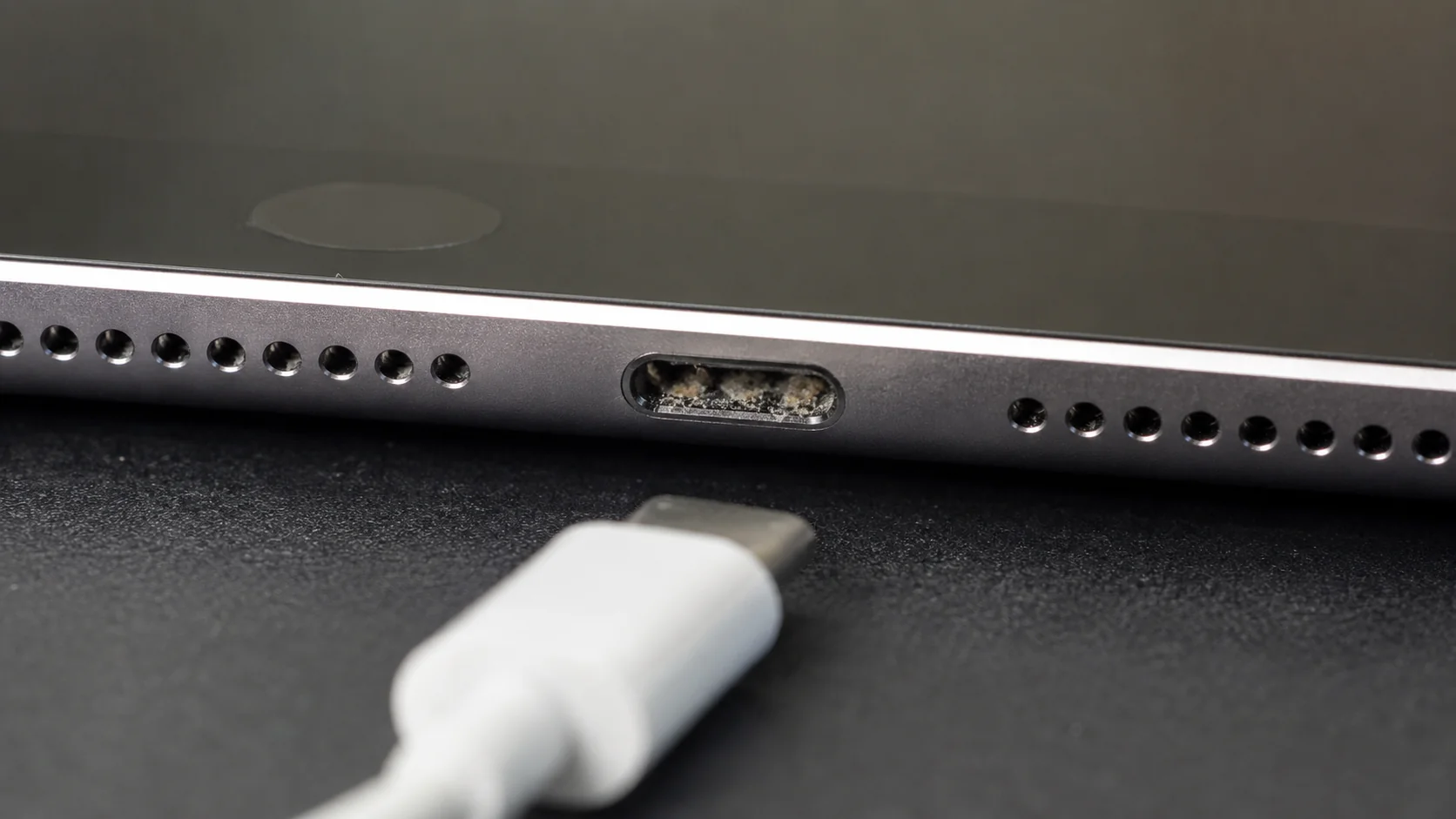
Yes. Debris inside a charging port is a common reason a cable stops fitting correctly.
iPads are frequently carried in backpacks, laptop bags, purses, and cases where dust, fabric fibres, and small particles can accumulate. Repeatedly inserting the charging cable can compress that debris deeper into the connector.
Eventually, the cable may no longer seat fully against the internal contacts.
Signs the Port May Need Cleaning
- The cable no longer inserts as deeply as it used to.
- The connector feels loose with several different cables.
- You can see dust or lint around the opening.
- Charging starts when you apply slight pressure to the connector.
- The problem developed gradually rather than after a drop.
- There is no visible bending or physical damage to the port.
Should You Clean an iPad Charging Port Yourself?
You can visually inspect the charging port with good lighting, but inserting household objects into it is risky.
A charging port contains small contacts that can be bent, scraped, or damaged. A tool can also push debris deeper rather than removing it.
Avoid Putting These Into the Charging Port
- Paper clips
- Safety pins
- Needles
- Metal tweezers
- Knives
- Cotton swabs
- Wet cloth
- Cleaning fluid
- Household sprays
Signs the Charging Port May Be Damaged
A physically damaged port is different from one that is simply dirty.
- The cable only works when held upward or downward.
- Charging stops when the cable moves slightly.
- The connector is unusually loose even after the port is cleaned.
- The port appears bent or pushed inward.
- The cable will not stay connected.
- The iPad cannot communicate with a computer through the port.
- Visible contacts inside the port appear damaged.
- Charging stopped immediately after a drop or cable impact.
Charging Port Problem or Battery Problem?
| More Likely Charging Port Related | More Likely Battery Related |
|---|---|
| Charging starts and stops when the cable moves. | The iPad charges normally but loses power quickly afterward. |
| The connector feels loose. | The battery percentage drops unusually fast. |
| Several cables do not fit securely. | The iPad shuts down before reaching 0%. |
| The port contains visible debris or physical damage. | Battery runtime has gradually become much shorter. |
| The iPad works normally once charged another way or after restoring the connection. | The iPad becomes unreliable even after reaching a full charge. |
| Computer connectivity through the port is unreliable. | Supported models show poor battery health or a service recommendation. |
How iPad Batteries Change With Age
iPads use rechargeable lithium-ion batteries. Like all rechargeable batteries, their capacity gradually declines with use and age.
Common signs of battery deterioration include:
- Much shorter runtime
- Rapid percentage drops
- Unexpected shutdowns
- Needing to recharge several times a day
- The iPad dying shortly after being unplugged
- Battery percentage behaving unpredictably
Can You Check Battery Health on an iPad?
On certain newer iPad models, yes.
On a supported device, go to:
Settings > Battery > Battery Health
You may be able to see information such as:
- Maximum Capacity
- Battery health status
- Cycle count
- Manufacturing information
You can review Apple’s current supported-device information here: How to check battery health and history on your iPad.
Why Does My iPad Stop Charging at 80%?
An iPad stopping around 80% does not always indicate a faulty battery or charging port.
On supported newer models, Apple offers an 80% charging limit designed to reduce the amount of time the battery remains fully charged.
Temperature Can Affect iPad Charging
Heat and cold can both affect charging behaviour.
If the iPad becomes too warm, software may slow or pause charging to protect the battery.
Why Is My iPad Charging Very Slowly?
Possible reasons include:
- A low-powered charger
- Charging from a weak computer USB port
- A damaged cable
- Heavy iPad use while charging
- High screen brightness
- Games or demanding applications
- Temperature protection
- An aging battery
- An unstable charging-port connection
What If the iPad Says It Is Charging but the Percentage Does Not Increase?
This symptom can happen when the iPad is using almost as much power as it is receiving.
It can also indicate a weak charger, damaged cable, unstable charging port, battery deterioration, or an internal charging-system problem.
What If the iPad Will Not Turn On at All?
If the device still shows no signs of life after testing known-working charging equipment and following Apple’s restart procedure, the issue may involve the charging port, battery, display, an internal connector, the charging circuit, or the logic board.
At that point, professional iPad no-power repair can help determine why the device is not starting rather than assuming the battery alone is responsible.
Can Water Damage Cause an iPad to Stop Charging?
Yes. Liquid exposure can affect the charging port, internal connectors, battery, and logic board.
Professional iPad water damage repair allows the device to be inspected for corrosion and affected components.
Quick iPad Charging Troubleshooting Checklist
| What to Test | What the Result Can Tell You |
|---|---|
| Try another charging cable | If charging returns, the original cable may be damaged. |
| Try another compatible adapter | If charging improves, the original adapter may be faulty or underpowered. |
| Use a wall outlet | This helps rule out a weak computer USB port or hub. |
| Inspect the port with a light | Visible packed debris may explain a loose connection. |
| Restart the iPad | A temporary software problem may clear. |
| Allow a fully drained iPad to charge | A deeply discharged battery may need time before the screen responds. |
| Check Battery Health on supported models | Low capacity or a service indication can point toward battery deterioration. |
| Check whether charging stops near 80% | An enabled charging limit or temperature management may explain the behaviour. |
When Should You Stop Troubleshooting?
- Multiple known-working chargers do not work.
- The charging cable only works at a certain angle.
- The connector feels very loose.
- The port looks physically damaged.
- The iPad becomes excessively hot during charging.
- The battery drains rapidly after reaching a full charge.
- The device shuts down unexpectedly.
- The screen or housing appears swollen.
- The charging problem started after liquid exposure.
- The iPad will not turn on at all.
What Happens During a Professional Charging Diagnosis?
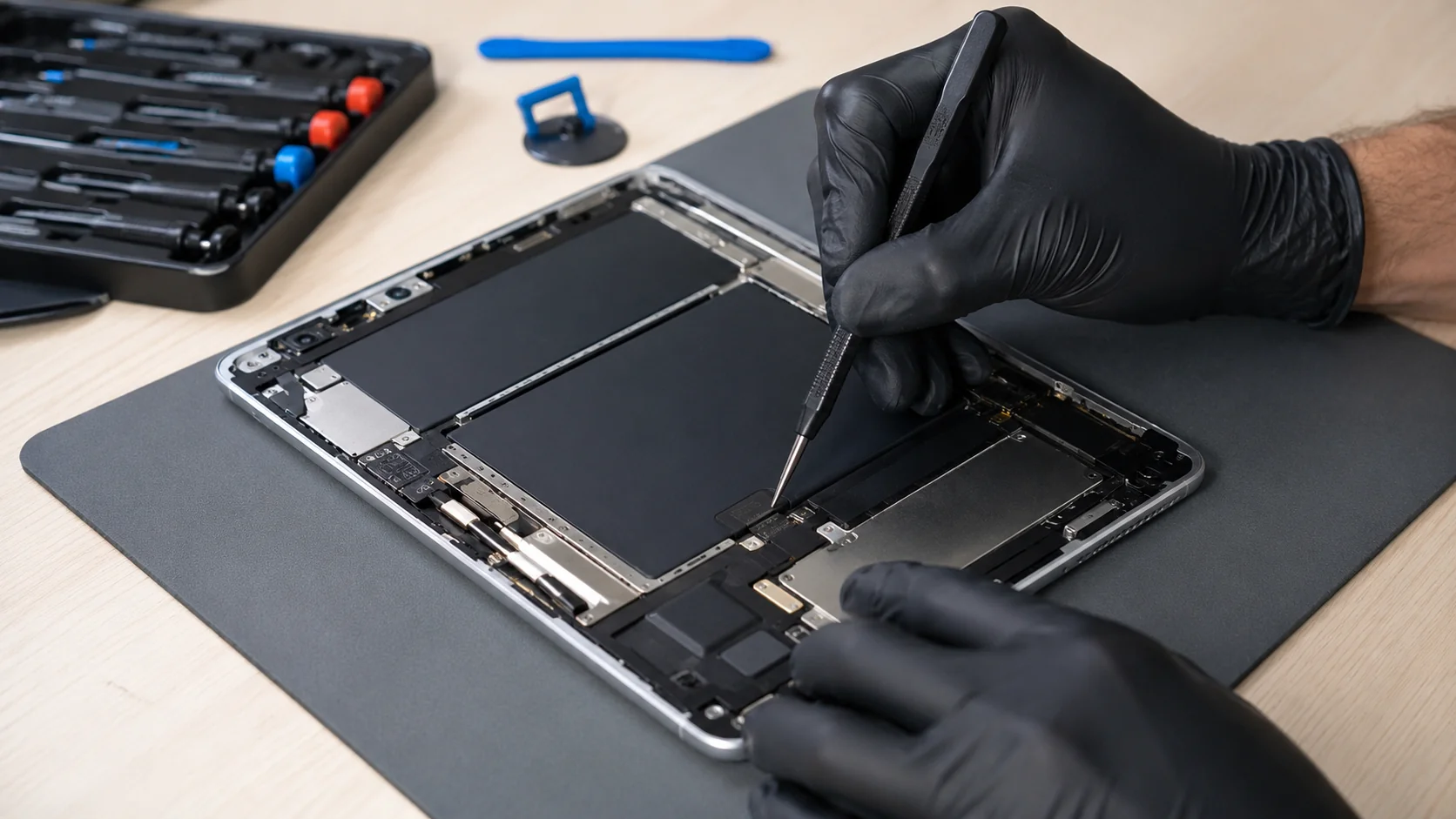
A technician may check the charging cable, power adapter, physical charging port, debris inside the connector, charging stability, battery behaviour, power consumption, signs of liquid damage, internal connectors, charging circuitry, and whether the iPad communicates with diagnostic equipment or a computer.
Possible iPad Charging Repairs
| Problem Found | Possible Solution |
|---|---|
| Faulty cable or adapter | Replace the accessory rather than repairing the iPad. |
| Packed debris | Professional charging-port cleaning. |
| Damaged charging port | Charging-port repair or replacement, depending on the model. |
| Degraded battery | Battery replacement. |
| Liquid damage | Internal inspection, cleaning, and repair of affected components. |
| Internal charging fault | Advanced diagnostic and board-level repair where appropriate. |
| Software issue | Software troubleshooting rather than hardware replacement. |
How Much Does iPad Charging Repair Cost?
The cost depends on what is actually causing the problem.
Factors that can affect cost include:
- The exact iPad model
- USB-C or Lightning port design
- Whether the port needs cleaning or replacement
- Battery condition
- Liquid or corrosion damage
- Internal board damage
- Replacement-part availability
How to Reduce Future Charging Problems
- Insert and remove charging cables straight rather than twisting them.
- Hold the connector instead of pulling on the cable.
- Stop using damaged charging accessories.
- Keep bags and cases reasonably free of lint and dirt.
- Do not force a connector that does not fit properly.
- Avoid placing sideways pressure on the cable while charging.
- Keep liquids away from the iPad when it is connected to power.
- Avoid excessive heat during charging.
- Use compatible charging equipment with adequate power.
Frequently Asked Questions About iPad Charging Problems
Why is my iPad plugged in but not charging?
The problem could involve the cable, power adapter, outlet, charging port, battery, temperature, software, or an internal charging component. Test another compatible cable and power source before assuming the port is broken.
How do I know if my iPad charging port is damaged?
Common signs include charging only at a certain angle, a loose connector, repeated disconnections, visible physical damage, or failure to connect reliably to a computer.
Can lint stop an iPad from charging?
Yes. Packed lint or debris can prevent the connector from reaching the internal contacts properly, making the cable feel loose or causing intermittent charging.
Can I clean the iPad charging port myself?
You can visually inspect it, but avoid inserting metal tools, liquids, cotton swabs, or household objects. Internal connector contacts can be damaged easily.
How do I know if my iPad battery needs replacing?
Signs can include short runtime, rapid battery drain, unexpected shutdowns, or poor battery health on supported models. A diagnosis can confirm whether the battery is responsible.
Why does my iPad stop charging at 80%?
Supported newer iPads may have an 80% charging limit enabled. Charging can also be temporarily limited when the device becomes too warm.
Why is my iPad charging so slowly?
A low-powered adapter, weak USB port, damaged cable, heavy device use, temperature protection, battery deterioration, or an unstable charging port can all slow charging.
Can a bad battery make it look like the charging port is broken?
Yes. An aging battery may accept charge poorly or lose power quickly after charging, creating symptoms that can be mistaken for a port problem.
Can water damage cause charging problems?
Yes. Moisture can damage or corrode the charging port and internal components. Avoid connecting a wet iPad to power and have it inspected.
What should I do if my iPad does not turn on even after charging?
Try Apple’s recommended force-restart procedure and allow a deeply discharged iPad enough time on a known-working charger. If there is still no response, professional diagnosis may be necessary.
Get Your iPad Charging Problem Checked in Toronto
If your iPad is not charging, start with the simplest possibilities. Test another compatible cable, power adapter, and outlet. Restart the device, inspect the charging port without inserting objects, and allow a fully drained battery enough time to respond.
If charging continues to cut in and out, the cable only works at an angle, the battery drains immediately after charging, or the iPad does not turn on at all, the problem should be diagnosed before parts are replaced.
Profix Cell can determine whether your iPad needs charging-port cleaning, charging-port repair, battery replacement, liquid-damage treatment, or a more advanced internal repair.
Visit Profix Cell at 1281 Gerrard St E, Toronto, ON M4L 1Y5 to have your iPad charging problem inspected and get the appropriate repair recommendation.