
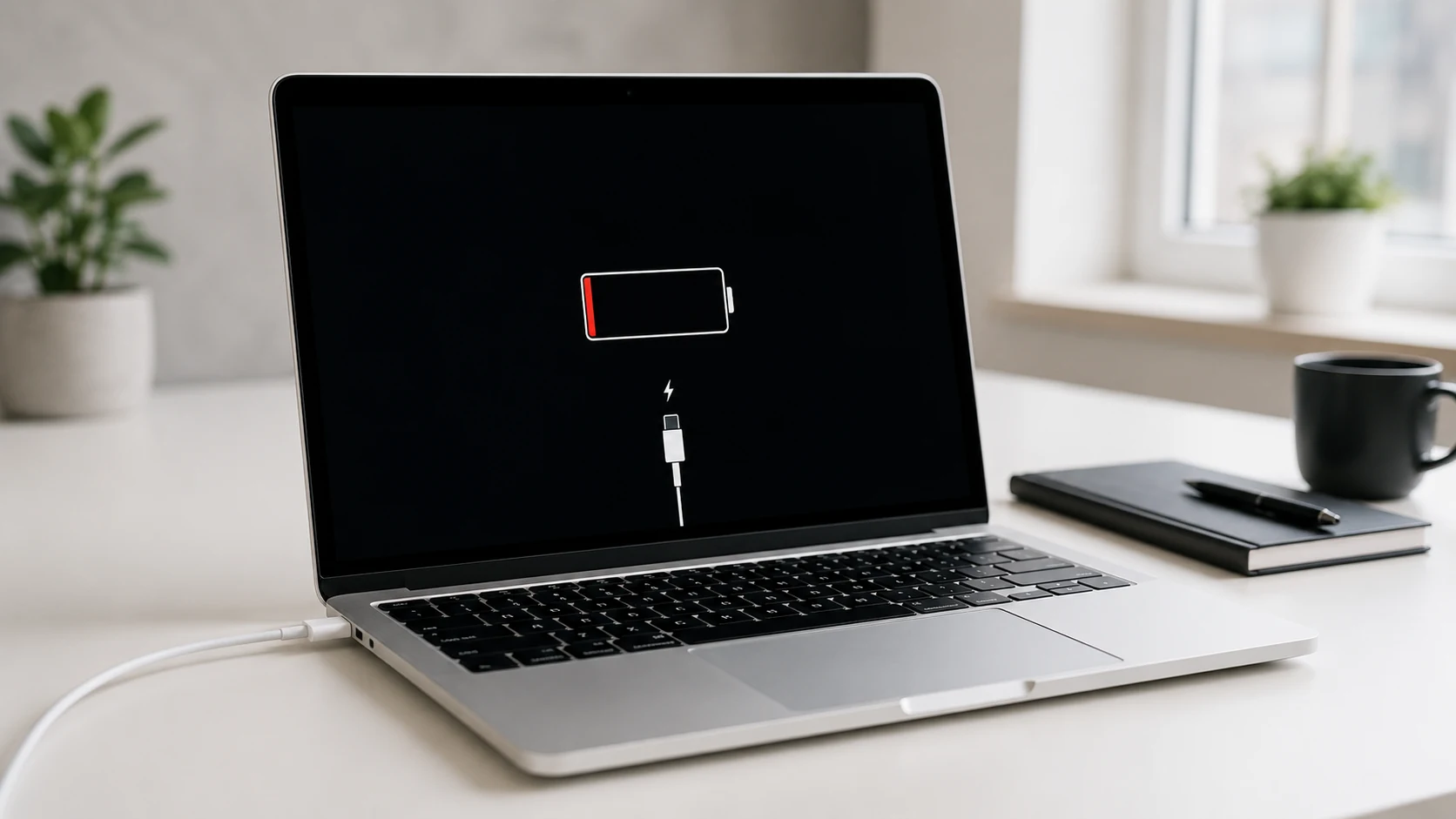
A MacBook that will not charge can go from mildly annoying to full panic mode very quickly. One minute you are working, studying, editing, browsing, or answering emails. The next minute the battery percentage is dropping, the charging icon is missing, or the MacBook will not turn on at all. Not exactly the productivity setup anyone asked for.
The good news is that a MacBook not charging does not always mean the device is dead. Sometimes the issue is as simple as a bad outlet, damaged charging cable, dirty port, software glitch, or incorrect power adapter. Other times, it can point to a worn-out battery, damaged USB-C or MagSafe port, liquid damage, logic board issue, or internal power problem.
This guide explains the most common reasons your MacBook may not charge, what you can safely check first, when the issue needs professional diagnosis, and what repair options may be available. If the problem keeps happening, Profix Cell provides professional MacBook repair in Toronto, including charging issues, battery replacement, screen repair, water damage repair, and deeper hardware diagnostics.
Common Signs of a MacBook Charging Problem
MacBook charging issues can show up in different ways. Some are obvious, like the laptop refusing to turn on. Others are more subtle, like charging only at a certain angle or taking much longer than usual to gain battery percentage.
| What You Notice | What It Could Mean |
|---|---|
| The MacBook is plugged in but not charging | Possible cable, adapter, port, battery, or internal charging issue |
| The charger works only at a certain angle | Possible loose USB-C port, damaged MagSafe connection, or worn cable |
| The MacBook charges very slowly | Possible low-wattage adapter, battery issue, software setting, or power delivery problem |
| The MacBook says “Battery Not Charging” | Possible battery management behaviour, power source issue, or battery condition problem |
| The battery drains while plugged in | Possible incorrect adapter wattage, heavy usage, failing battery, or charging circuit issue |
| The MacBook will not turn on at all | Possible drained battery, charger failure, liquid damage, battery failure, or board-level issue |
The symptom matters. A MacBook that charges slowly with one cable but normally with another likely has a different issue than a MacBook that will not respond to any charger. Diagnosis starts by narrowing down the pattern.
Start With the Basics: Is Power Actually Reaching the MacBook?
Before assuming the worst, start with the simple checks. Apple recommends checking the power source, restarting the Mac, testing the wall outlet, checking the USB-C cable, and trying to rule out power-related issues when a USB-C power adapter is not charging a Mac laptop. You can review Apple’s guidance here: If your USB-C power adapter isn’t charging your Mac laptop.
These checks sound basic, but they matter. A MacBook charging issue is not always inside the MacBook. Sometimes the charger, cable, outlet, power bar, or wall adapter is the actual problem. The trick is to test carefully without forcing anything.
Try These Safe First Checks
- Test a different wall outlet.
- Remove any power bar or extension cord and plug directly into the wall.
- Check whether the cable is bent, frayed, cracked, or loose.
- Make sure the power adapter is firmly connected.
- Restart the MacBook if it still has power.
- Disconnect hubs, docks, monitors, and accessories.
- Let the MacBook charge for 10 to 15 minutes if the battery is completely drained.
If the MacBook starts charging after one of these steps, great. If it still does not charge, or if the issue comes back repeatedly, the problem may be deeper than a simple power source issue.
Common Reasons a MacBook Won’t Charge
There are several reasons a MacBook may stop charging. Some are external and easy to identify. Others require opening the device and testing components properly.
1. Damaged Charging Cable or Power Adapter
A damaged cable or adapter is one of the most common reasons a MacBook will not charge. USB-C and MagSafe cables can wear out over time, especially if they are bent often, pulled from the cord instead of the connector, or carried around daily in a backpack.
Signs of a cable or adapter problem include:
- The MacBook charges with another charger but not yours.
- The cable feels loose or unreliable.
- The cable has visible damage.
- The adapter gets unusually hot.
- The MacBook charges only when the cable is held at a certain angle.
Apple also provides guidance for MagSafe charging accessories here: If your MagSafe cable or power adapter isn’t working. If the charging accessory is the issue, replacing the cable or adapter may solve the problem without repairing the MacBook itself.
2. Wrong or Underpowered Charger
Not all MacBook chargers provide the same amount of power. A charger that works for one MacBook model may be too weak for another, especially under heavier use. For example, a MacBook Pro doing video editing, design work, or multiple external monitor tasks may need more power than a smaller adapter can provide.
Apple explains that users can check the wattage on the adapter label or in System Information on the Mac. You can read Apple’s power adapter guidance here: Use a power adapter with your Mac.
If your MacBook says it is plugged in but the battery is still draining, the adapter may not be supplying enough power for the device’s workload. In plain English: the MacBook is using energy faster than the charger can refill it. Very “trying to fill a pool with a water bottle” energy.
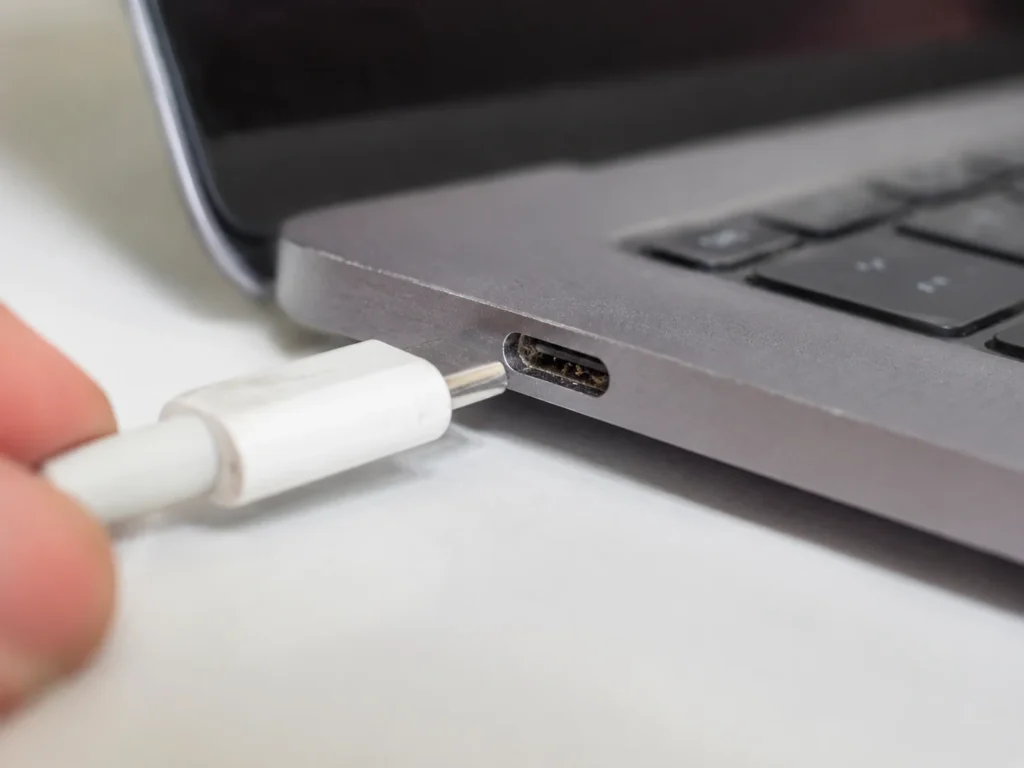
3. Dirty or Damaged USB-C Port
Modern MacBooks often use USB-C ports for charging. These ports are convenient, but they can collect dust, lint, and debris over time. If the charging cable does not sit properly in the port, the MacBook may charge intermittently or not at all.
Do not force a cable into the port. Do not scrape inside the port with metal tools. A damaged charging port can turn a simple cleaning issue into an actual repair. If the port feels loose, the cable wiggles too much, or charging only works at one angle, bring it in for MacBook not charging repair so the charging system can be checked properly.
4. Battery Health Problems
A MacBook battery naturally wears down over time. After enough charge cycles, it may hold less power, drain faster, charge slowly, shut down unexpectedly, or show a service warning.
Apple explains that Mac users can check battery condition in System Settings. Battery Health may show “Normal” or “Service Recommended.” Apple notes that “Service Recommended” can mean the battery’s ability to hold a charge is reduced compared with when it was new. You can read Apple’s battery condition guidance here: Check the condition of your Mac laptop’s battery.
Battery issues are especially likely if you notice:
- The MacBook dies quickly after being unplugged.
- The battery percentage jumps up or down suddenly.
- The MacBook shuts off even when the battery shows charge remaining.
- The battery says “Service Recommended.”
- The MacBook charges slowly or stops charging before 100%.
If the battery is failing, a professional MacBook battery replacement may be needed to restore reliable charging and battery performance.
5. Battery Swelling
A swollen battery is more serious than a battery that simply drains fast. If the battery expands inside the MacBook, it can put pressure on the trackpad, keyboard, bottom case, and internal components.
Signs of possible battery swelling include:
- The trackpad feels raised or harder to click.
- The bottom case does not sit flat.
- The keyboard area looks uneven.
- The MacBook rocks on a flat surface.
- The gap between parts of the body appears wider than normal.
If you suspect battery swelling, stop using the MacBook and have it checked. Do not press the case back into shape. Do not keep charging it. Do not try to remove the battery yourself. This is one of those “don’t be the hero” moments.
6. Liquid Damage
Liquid damage can affect MacBook charging even if the spill happened days, weeks, or months ago. Coffee, water, tea, juice, and other liquids can reach the charging system, battery connector, keyboard, trackpad, logic board, or USB-C ports.
Sometimes the MacBook still works after a spill, which makes people think everything is fine. The problem is that corrosion can develop over time. A device that charged normally yesterday may suddenly stop charging today because internal damage has progressed.
If your MacBook stopped charging after any liquid exposure, do not keep plugging it in. Bring it in for MacBook water damage repair, including inspection for corrosion, damaged connectors, and board-level problems.
7. Logic Board or Charging Circuit Issue
If the charger, cable, port, and battery are not the problem, the issue may be with the logic board or internal charging circuit. This can happen after liquid damage, power surge, component failure, overheating, or physical damage.
Board-level charging issues may show symptoms like:
- No response from the MacBook when plugged in.
- Battery not detected.
- Charging icon appears but battery percentage does not increase.
- MacBook turns on only when plugged in.
- MacBook turns off as soon as the charger is disconnected.
These problems usually require professional diagnosis. Guessing can lead to unnecessary part replacements. Proper testing helps determine whether the issue is the battery, port, cable, board, or another internal component.
Quick Troubleshooting Table
Use this table as a simple guide before bringing the MacBook in. If any step feels unsafe, skip it and get the device inspected.
| Problem | Safe Check | When to Get It Checked |
|---|---|---|
| No charging icon | Try another outlet, restart, check cable connection | If it still does not respond with a known working charger |
| Charges only at an angle | Try another cable gently | If the port or connector feels loose |
| Charges slowly | Check adapter wattage and disconnect accessories | If charging remains slow with the right adapter |
| Battery drains while plugged in | Reduce heavy apps and check power adapter wattage | If it happens during normal use |
| Service Recommended battery message | Check Battery Health in System Settings | If battery life is poor, charging is unreliable, or the device shuts down |
| Stopped charging after a spill | Stop using and unplug the device | Immediately, because liquid damage can worsen internally |
Can You Fix a MacBook Charging Issue Yourself?
You can safely do basic checks yourself. Testing another outlet, restarting the MacBook, trying a known compatible charger, disconnecting accessories, and checking Battery Health are reasonable first steps.
However, opening the MacBook, cleaning internal components, removing the battery, replacing ports, or testing board-level charging circuits should be left to a technician. Modern MacBooks are tightly built, and small mistakes can damage connectors, screws, batteries, or the logic board.
For example, if a USB-C port has debris, it may look like a simple cleaning job. But using the wrong tool can damage the pins inside the port. If the battery is swollen, trying to remove it without proper tools can be dangerous. If liquid damage is present, powering the device repeatedly can make the damage worse.
In short: basic troubleshooting is fine. Internal repair is where the chaos starts.
When You Should Stop Troubleshooting and Bring It In
There is a point where continuing to test the MacBook can cause more harm than good. If the issue is clearly not a simple outlet or cable problem, professional diagnosis is the smarter move.
Bring your MacBook in if:
- It does not charge with a known working charger.
- The charging port feels loose or damaged.
- The charger only works at a specific angle.
- The battery says “Service Recommended.”
- The MacBook shut down and will not turn back on.
- The battery is swelling or the case looks uneven.
- The MacBook was exposed to liquid.
- The device gets unusually hot while charging.
- The battery percentage does not increase while plugged in.
Apple also notes that Apple Diagnostics can help identify possible hardware issues with a Mac. It is a useful tool, but it does not catch every possible charging fault, especially intermittent port issues, corrosion, or certain board-level problems. You can read Apple’s diagnostic guidance here: Use Apple Diagnostics to test your Mac.
What to Expect During a MacBook Charging Diagnosis
When you bring a MacBook with charging problems to Profix Cell, the goal is to find the cause before replacing parts. A charging issue can look simple from the outside but have several possible causes internally.
A proper diagnosis may include:
- Testing the MacBook with a known compatible charger.
- Checking the charging cable and adapter.
- Inspecting USB-C or MagSafe ports for damage or debris.
- Checking battery condition and charging behaviour.
- Looking for signs of battery swelling.
- Checking for liquid damage or corrosion.
- Testing whether the MacBook powers on with or without the battery.
- Inspecting board-level charging components if needed.
This approach helps avoid the biggest mistake: replacing the wrong part. A MacBook that will not charge may need a battery. Or it may need a charging port. Or it may need liquid damage repair. Or the charger may be the issue. Same symptom, different villain.
Possible Repair Options
The right repair depends on the diagnosis. Here are the most common repair paths for a MacBook that will not charge.
| Possible Cause | Likely Repair Option |
|---|---|
| Damaged cable or adapter | Replace the charging cable or power adapter |
| Dirty or damaged charging port | Port cleaning, inspection, or charging port repair |
| Weak or failing battery | MacBook battery replacement |
| Swollen battery | Battery replacement and internal safety inspection |
| Liquid damage | Water damage inspection, corrosion cleaning, and board-level repair if possible |
| Logic board charging issue | Board-level diagnosis and repair options |
If your MacBook also has display issues, power problems, or signs of impact, the diagnosis may include related services such as MacBook screen repair. Charging problems are sometimes connected to other damage, especially after drops or spills.
How to Avoid MacBook Charging Problems in the Future
Not every charging issue can be prevented, but good habits can reduce the risk.
- Use the correct charger for your MacBook model.
- Avoid cheap, low-quality charging accessories.
- Do not bend the cable sharply near the connector.
- Unplug by holding the connector, not pulling the cord.
- Keep drinks away from the MacBook.
- Do not force a cable into a dirty or damaged port.
- Bring the device in early if charging becomes intermittent.
Charging issues usually get worse over time when they are caused by loose ports, bad batteries, or liquid damage. If the MacBook charges only when the cable sits “just right,” that is your sign. The cable should not need a secret handshake to work.
Why Choose Profix Cell for MacBook Charging Repair?
Profix Cell helps Toronto customers with MacBook charging problems, battery issues, liquid damage, screen problems, and other device repairs. The process is practical: explain the issue, get the device checked, and review the repair options before moving ahead.
For MacBook charging issues, that matters because the problem is not always obvious. A charging failure can come from the adapter, cable, port, battery, liquid exposure, or logic board. Proper diagnosis helps you avoid wasting money on the wrong fix.
If your MacBook is not charging, the best next step is to get the device checked before replacing random parts. The issue may be simple, like a cable or adapter, or more serious, like a battery, charging port, liquid damage, or logic board problem.
Frequently Asked Questions About MacBook Charging Problems
Why is my MacBook plugged in but not charging?
Your MacBook may be plugged in but not charging because of a damaged cable, weak adapter, dirty charging port, battery health issue, software behaviour, liquid damage, or internal charging circuit problem. Start with the charger, cable, and outlet before assuming the MacBook itself is the problem.
Why does my MacBook only charge at a certain angle?
If your MacBook only charges at a certain angle, the cable, connector, USB-C port, or MagSafe connection may be worn, loose, or damaged. Avoid forcing the cable or wiggling it repeatedly, because that can make the issue worse.
Can a bad battery stop a MacBook from charging?
Yes. A weak, failing, or swollen battery can cause charging problems, fast battery drain, sudden shutdowns, or a “Service Recommended” message. If battery health is poor, a battery replacement may be needed.
What should I do if my MacBook will not turn on or charge?
Try a known working charger and a different outlet. Leave it connected briefly if the battery may be fully drained. If there is still no response, or if there was liquid exposure, bring it in for diagnosis instead of repeatedly trying to power it on.
Can liquid damage cause charging problems?
Yes. Liquid can damage charging ports, battery connections, keyboard components, trackpad components, and the logic board. If the charging issue started after a spill, stop using the MacBook and get it inspected quickly.
Is slow MacBook charging normal?
Slow charging can happen if you are using an underpowered adapter, running heavy apps, charging through a dock, or using a poor-quality cable. If your MacBook charges slowly even with the correct charger, the battery or charging system may need inspection.
Should I replace the charger before getting the MacBook repaired?
If you have access to a known compatible charger, test it first. If another charger works normally, the issue may be the cable or adapter. If the MacBook still does not charge, it is time to check the device itself.
Is it worth repairing a MacBook that will not charge?
In many cases, yes. If the MacBook is otherwise in good condition, repairing the battery, charging port, or charging system may be more cost-effective than replacing the laptop. The best answer depends on the model, condition, and repair estimate.