
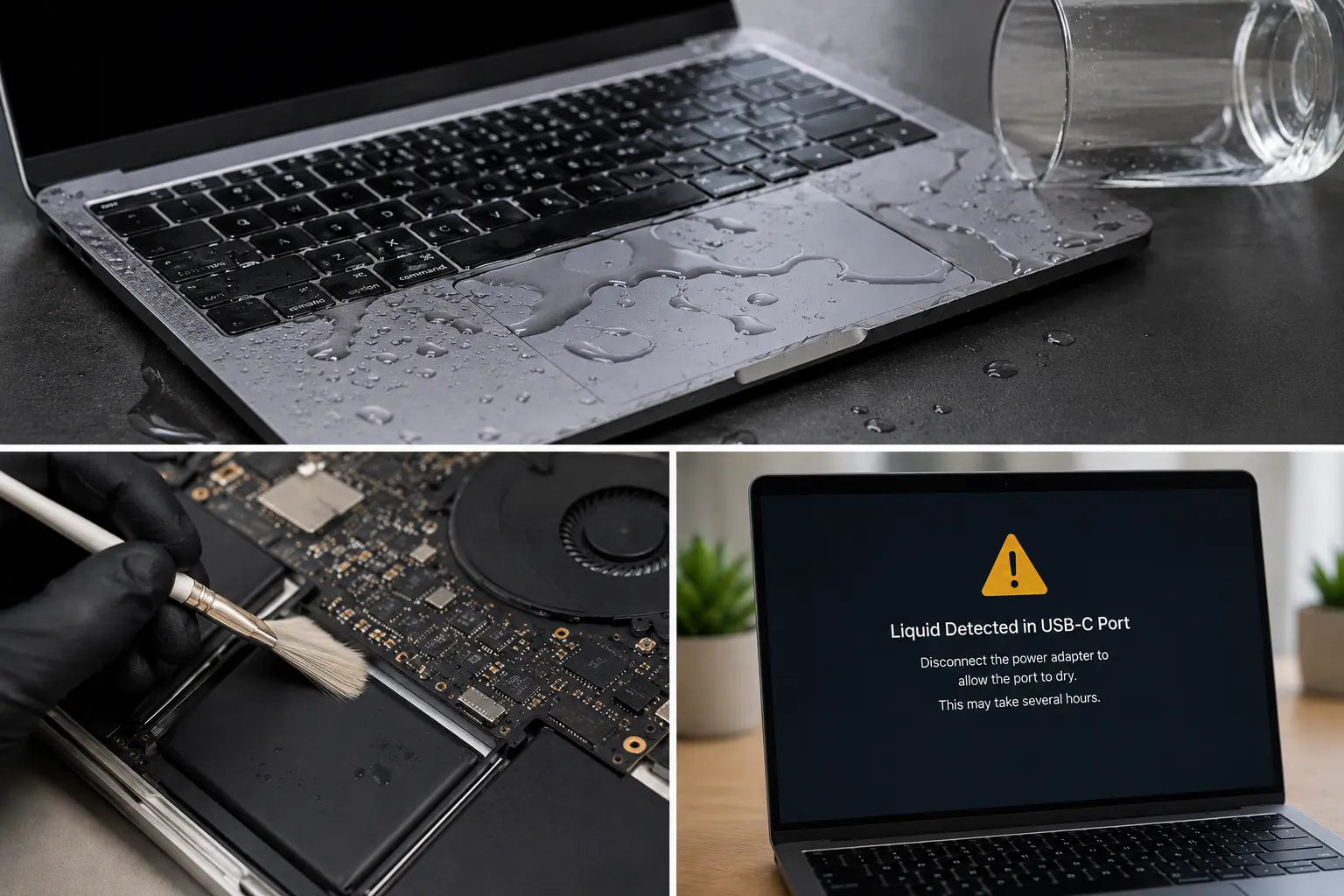
Spilling water on a MacBook is one of those moments where time slows down. One second your laptop is open on the desk. The next second, there is water on the keyboard, trackpad, screen, hinge area, or charging port. Panic mode: activated.
The most important thing to know is this: even if your MacBook still turns on after a spill, that does not mean it is safe. Liquid can move inside the device, reach internal components, and cause damage that appears later. Sometimes the MacBook works normally for a few hours or even a few days before charging issues, keyboard problems, screen flickering, battery drain, or startup failure begin.
This guide explains what to do immediately after spilling water on your MacBook, what not to do, what warning signs to watch for, and when to bring the device in for professional inspection. If your laptop was exposed to water or another liquid, Profix Cell provides professional MacBook repair in Toronto, including liquid damage inspection, battery checks, charging repair, display issues, and board-level diagnostics.
First Step: Stop Using the MacBook Immediately
If water gets on your MacBook, the first step is not to test every key, open apps, check YouTube, or see if it “still works.” The first step is to stop using it.
Liquid and electricity are not friends. If moisture reaches internal components while the device is powered on or charging, it can increase the risk of short circuits and corrosion. The faster you stop using the MacBook, the better the chance of limiting damage.
Do This Right Away
- Shut down the MacBook immediately if it is still on.
- Unplug the charger from the MacBook and the wall.
- Disconnect all accessories, including USB-C hubs, external drives, monitors, and headphones.
- Move the MacBook away from the liquid source.
- Use a soft, dry, lint-free cloth to remove visible water from the outside.
- Do not press keys repeatedly to “test” them.
- Do not plug the charger back in.
Apple’s cleaning guidance for MacBook, MacBook Pro, and MacBook Air recommends shutting down the computer and unplugging the power adapter before cleaning the outside. Apple also advises avoiding moisture in openings and not spraying liquid directly on the computer. You can read Apple’s guidance here: How to clean your Apple products.
What Not to Do After a Water Spill
Most of the damage after a spill happens because people try to “fix” the MacBook too quickly. The instinct is understandable. You want to know if it survived. But turning it back on too soon can make things worse.
| Do Not Do This | Why It Can Make Things Worse |
|---|---|
| Do not turn the MacBook back on | Powering it on while moisture is inside can increase the risk of electrical damage |
| Do not plug in the charger | Charging can send power through wet or contaminated components |
| Do not use a hair dryer | Heat can push moisture deeper and may damage parts |
| Do not put the MacBook in rice | Rice does not properly clean corrosion or remove liquid from internal components |
| Do not shake the MacBook aggressively | This can spread liquid to other internal areas |
| Do not remove parts yourself | Modern MacBooks are delicate, and DIY opening can cause more damage |
The “rice trick” needs to retire. It may make people feel like they are doing something, but it does not inspect the board, remove residue, clean corrosion, or confirm whether the battery, keyboard, charging port, or logic board is safe.
Why Water Damage Can Get Worse Over Time
Water damage is tricky because the MacBook may look fine from the outside. You might wipe it down, wait a bit, turn it on, and think everything is okay. Then a few days later, the keyboard starts acting strange. Or the MacBook stops charging. Or the screen flickers. Or it shuts down randomly.
This happens because water can reach internal components and leave minerals or residue behind. Even clean water can cause corrosion after it gets inside the device. Coffee, tea, juice, soda, alcohol, and sugary drinks are usually worse because they can leave sticky or acidic residue.
Once corrosion starts, it can spread across connectors and small components. That is why a MacBook that works after a spill can still fail later. The device may not be “fine.” It may just not have failed yet. Sneaky little villain arc.
Common Places Liquid Can Enter a MacBook
MacBooks are thin and tightly built, but they are not designed to handle spills. Liquid can enter through several areas.
- Keyboard openings
- Trackpad edges
- Speaker grilles
- USB-C or MagSafe charging ports
- Vent areas
- Hinge area
- Gaps around the display assembly
A spill on the keyboard is especially concerning because liquid can travel down toward the battery, trackpad, logic board, and connectors. A spill near the side of the MacBook can affect charging ports. A spill near the hinge can affect display cables or internal screen-related components.
Symptoms That Can Appear After a MacBook Water Spill
Some symptoms appear right away. Others show up later. If your MacBook was exposed to liquid, watch for any change in behaviour, even if it seems small at first.
| Symptom | Possible Meaning |
|---|---|
| MacBook will not turn on | Possible battery, logic board, charging, or power-related damage |
| MacBook will not charge | Possible charging port, cable, battery, or charging circuit issue |
| Keyboard keys stop working | Possible liquid under the keyboard or internal keyboard damage |
| Trackpad behaves strangely | Possible liquid near the trackpad, battery, or internal connectors |
| Screen flickers or shows lines | Possible display cable, board, or screen-related liquid damage |
| MacBook gets hot or shuts down | Possible internal power, battery, or board-level issue |
| Speakers crackle or sound distorted | Possible moisture or damage near speaker components |
If your MacBook develops charging problems after a spill, it may need more than a new cable. Profix Cell offers MacBook not charging repair for devices with power, charging port, or internal charging issues.
What If the MacBook Still Works?
This is where many people get caught. The MacBook turns on, the screen looks normal, and the keyboard still responds. So they keep using it. That can be risky.
A working MacBook after a water spill does not mean the inside is dry or undamaged. It only means the device has not failed yet. Liquid may still be sitting near connectors or under components. Corrosion may develop later. The keyboard, charging port, trackpad, battery, display, or logic board may still be at risk.
If you need files urgently and the MacBook is still on, it may be tempting to keep working. The safer move is to shut it down and have it checked. If the data is important, mention that during inspection so the repair team understands your priority.
Should You Let the MacBook Dry Overnight?
Letting the MacBook sit may help surface moisture evaporate, but it does not guarantee the inside is safe. Moisture can remain under components, inside connectors, or beneath the keyboard. Residue can also remain even after the liquid dries.
Drying is not the same as cleaning. A MacBook can look dry and still have corrosion forming inside. This is why professional inspection matters after a serious spill.
If the spill was tiny and stayed on the exterior, the risk may be lower. But if water reached the keyboard, ports, vents, trackpad, hinge, or screen area, it is better to get it checked rather than wait for symptoms to show up.
Why You Should Not Charge a Wet MacBook
Plugging in a MacBook after a spill is one of the biggest mistakes. Charging sends power through the device. If liquid is inside, this can increase the chance of electrical damage.
If the battery is low or the MacBook turns off, do not treat that as a reason to plug it in. Treat it as a reason to stop using it and bring it in. A MacBook that was exposed to liquid should be inspected before charging, especially if the spill touched the keyboard, charging port, or underside.
If the battery later starts draining quickly, shutting down, or swelling, a professional MacBook battery replacement may be part of the repair recommendation, depending on what the inspection finds.
When to Bring the MacBook in for Water Damage Repair
The safest answer is simple: bring it in as soon as possible if liquid entered the device. Waiting can allow corrosion to spread and make repair more difficult.
Bring it in quickly if:
- Water spilled on the keyboard.
- Liquid reached the charging port.
- The MacBook shut off after the spill.
- The screen flickers or shows lines.
- The keyboard or trackpad behaves differently.
- The MacBook gets hot, shuts down, or will not charge.
- The spill involved coffee, tea, soda, juice, alcohol, or another sticky liquid.
- You need to protect important data.
Profix Cell provides MacBook water damage repair for devices exposed to liquid. The goal is to inspect the device, identify affected areas, check for corrosion, and determine the most practical repair path.
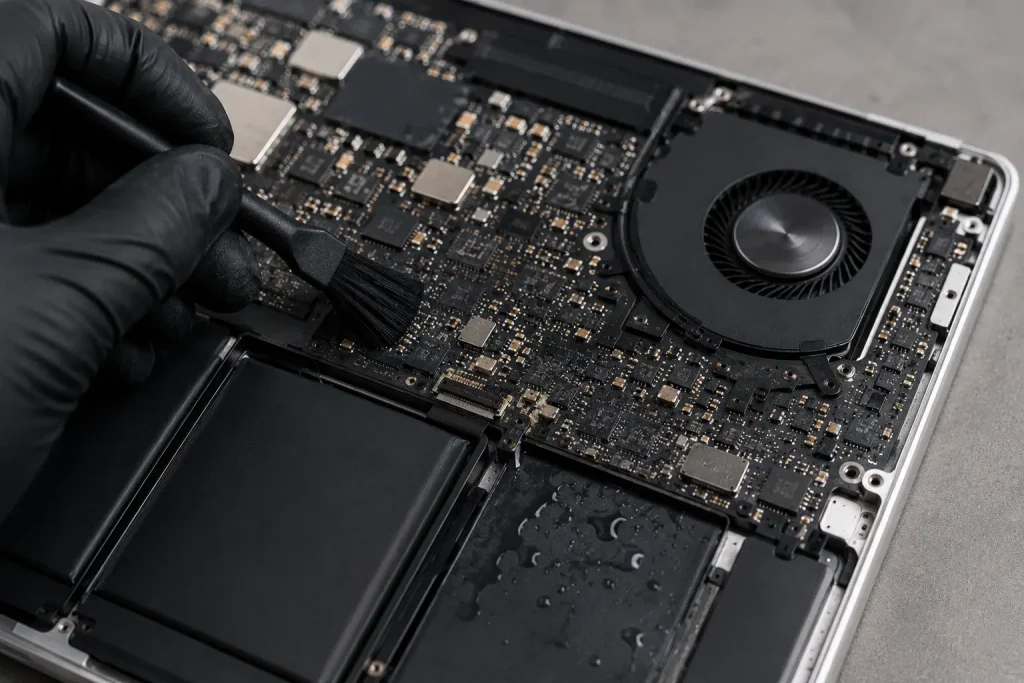
What Happens During a MacBook Water Damage Inspection?
A proper inspection is not just “turn it on and see what happens.” That is not diagnosis. That is gambling with a keyboard.
A water damage inspection may include checking:
- Where the liquid entered
- Whether the battery area was affected
- Charging port condition
- Keyboard and trackpad behaviour
- Display and screen function
- Logic board corrosion
- Internal connectors
- Whether the device can safely power on
The technician may also check whether the MacBook has related issues such as charging failure, screen flickering, fast battery drain, keyboard problems, or startup failure. Liquid damage often affects more than one part, so a full inspection is important.
Possible Repair Options After a Spill
The right repair depends on where the liquid went and how much damage has already happened. Some devices only need cleaning and inspection. Others may need part replacement or board-level repair.
| Problem Found | Possible Repair Option |
|---|---|
| Moisture or residue inside the MacBook | Internal cleaning and inspection |
| Corrosion near connectors | Corrosion cleaning and connector inspection |
| Charging failure | Charging port, battery, or board-level diagnosis |
| Battery affected by liquid | Battery inspection or replacement if needed |
| Keyboard not working properly | Keyboard repair or replacement depending on damage |
| Screen flickering or display failure | Display inspection or MacBook screen repair if needed |
| Logic board damage | Board-level diagnosis and repair options |
Does Apple Warranty Cover MacBook Liquid Damage?
Apple states that damage to Mac computers and accessories due to liquid exposure is not covered by the Apple One-Year Limited Warranty or the AppleCare Protection Plan. You can read Apple’s liquid damage warranty information here: About liquid damage to Mac computers and accessories not covered by warranty.
This is one reason many people look for local repair options after a spill. A water-damaged MacBook may still be repairable, but the right next step is inspection, not guessing.
How to Reduce the Risk of Future Spills
No one plans to spill water on a MacBook, but a few simple habits can reduce the risk.
- Keep drinks away from the laptop area.
- Use a separate side table for water or coffee.
- Avoid placing bottles behind the screen.
- Do not use the MacBook beside sinks, tubs, or wet counters.
- Be careful when using the laptop in bed or on a couch.
- Keep the MacBook out of bags with water bottles.
- Use a protective sleeve when carrying it.
Simple setup changes can prevent expensive repairs. The safest drink near a MacBook is the one that is not near the MacBook. Revolutionary stuff, honestly.
Frequently Asked Questions About Spilled Water on a MacBook
What should I do first if I spilled water on my MacBook?
Shut it down immediately, unplug the charger, disconnect accessories, and wipe visible water from the outside with a soft dry cloth. Do not turn it back on or charge it until it has been inspected.
Can a MacBook survive a water spill?
Sometimes, yes. But even if the MacBook still works, liquid may be inside the device. Damage can appear later because of corrosion or residue. Inspection is recommended if liquid reached the keyboard, ports, hinge, or underside.
Should I put my MacBook in rice?
No. Rice does not properly clean corrosion or remove liquid from internal components. It can also create dust and debris. Professional inspection is a better option.
Can I use a hair dryer to dry my MacBook?
No. Heat can damage components and may push moisture deeper into the device. Avoid heat, shaking, and forced air.
How long should I wait before turning on a wet MacBook?
There is no guaranteed safe waiting time. The outside may dry while moisture or residue remains inside. If liquid entered the MacBook, it is better to have it inspected before turning it back on.
Why does my MacBook work after the spill but then fail later?
Liquid damage can get worse over time because corrosion can develop inside the device. A MacBook may work for a short time after a spill and then develop charging, keyboard, screen, battery, or startup problems later.
Can water damage affect the battery?
Yes. Liquid can affect the battery area, battery connector, charging system, and internal power components. If the battery drains quickly, will not charge, or the MacBook gets hot after a spill, get it checked.
Is water damage repair worth it?
It depends on the MacBook model, the liquid involved, how quickly it was brought in, and how much internal damage occurred. A professional inspection can help determine whether repair makes sense.
Get MacBook Water Damage Help in Toronto
If you spilled water on your MacBook, the best move is to stop using it, unplug it, avoid charging it, and get it checked quickly. Waiting can allow corrosion to spread and make the repair more complicated.
For professional help, visit Profix Cell in Toronto. The team can inspect your MacBook, check the affected areas, and recommend the most practical repair option before the damage gets worse.