

A flickering MacBook screen can be frustrating, especially when you rely on your laptop for work, school, design, editing, meetings, or everyday browsing. One minute the display looks normal. The next minute it starts flashing, dimming, showing lines, changing brightness, or glitching whenever you move the lid. Not exactly the luxury Apple experience anyone signed up for.
The good news is that MacBook screen flickering does not always mean the display is completely finished. In some cases, it can be caused by a software setting, a graphics issue, a macOS problem, or an external accessory. In other cases, it may point to a damaged screen, loose display connection, liquid damage, battery swelling, or board-level issue.
This guide explains the most common reasons your MacBook screen may be flickering, what you can safely check first, when professional diagnosis is recommended, and what repair options may be available. If the problem keeps coming back, Profix Cell provides professional MacBook repair in Toronto, including screen repair, battery replacement, water damage assessment, charging issues, and deeper hardware diagnostics.
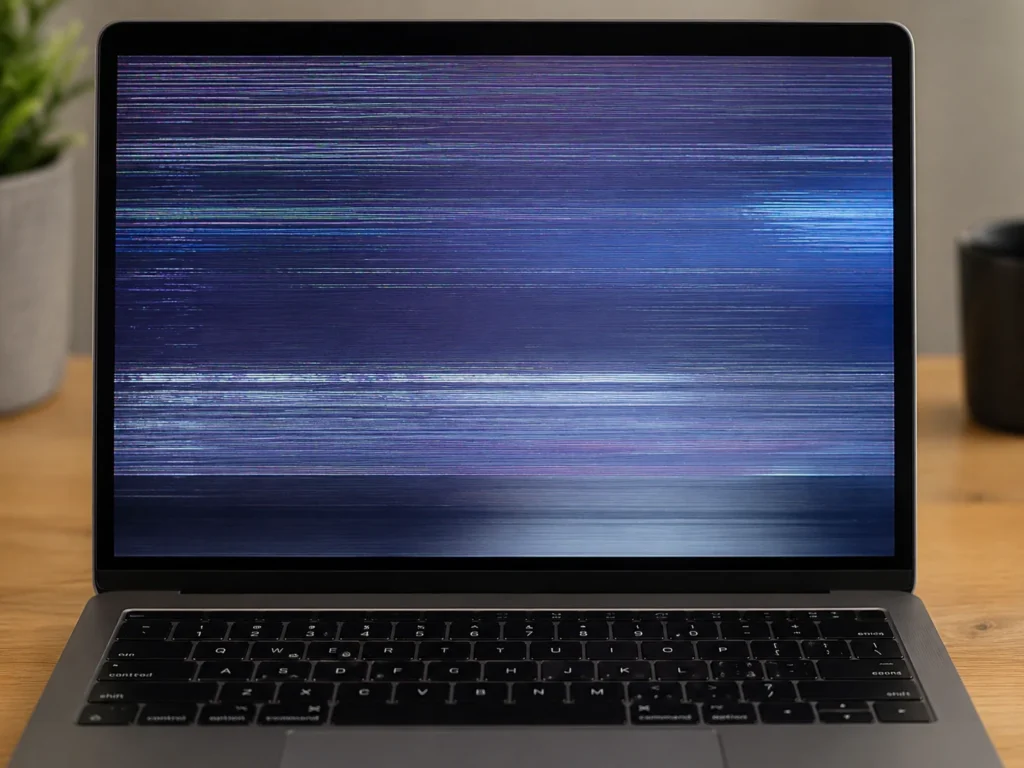
Common Signs of a MacBook Screen Flickering Problem
Screen flickering can show up in different ways. Some issues are obvious, while others appear only at certain angles, brightness levels, or after the MacBook has been running for a while.
| What You Notice | What It Could Mean |
|---|---|
| Screen flickers when opening or closing the lid | Possible display cable, hinge-area, or screen assembly issue |
| Random flashing while using apps | Possible software, graphics, macOS, or display hardware issue |
| Vertical or horizontal lines on the display | Possible LCD damage, display connector issue, or graphics-related fault |
| Display flickers after liquid exposure | Possible corrosion, short circuit, or board-level damage |
| Screen flickers and MacBook also shuts down | Possible battery, power, logic board, or thermal issue |
The pattern matters. A MacBook that flickers only when the lid moves may need a different repair than one that flickers only after a macOS update. That is why diagnosis is important before assuming the screen itself is the only problem.
What Usually Causes a MacBook Screen to Flicker?
There are several possible causes behind a flickering MacBook screen. Some are simple. Some are not. The goal is to separate basic software checks from signs of physical or internal damage.
1. Software or macOS Display Issues
Sometimes screen flickering is connected to macOS, display settings, app conflicts, graphics switching, or login items. This is more likely if the issue started after an update, only happens in specific apps, or improves after restarting.
Apple recommends starting your Mac in Safe Mode as one way to help isolate certain software-related issues. Safe Mode can prevent some software from loading during startup, which may make it easier to tell whether the issue is caused by macOS, login items, or third-party apps.
That said, Safe Mode is not a magic wand. If the display flickers while the MacBook is starting up, in Recovery Mode, or before macOS fully loads, that may point more toward hardware than software.
2. Damaged MacBook Screen or LCD
If your MacBook was dropped, hit, compressed in a bag, or closed on something small, the LCD may be damaged even if the outer glass looks fine. Modern MacBook screens are thin and tightly integrated, which is great for design but not great when damage happens.
Signs of possible LCD damage include:
- Vertical or horizontal lines
- Black patches or bright spots
- Flickering that gets worse over time
- Screen distortion when the lid is moved
- A display that works externally but not on the built-in screen
In these cases, a professional MacBook screen repair or MacBook LCD repair may be needed. The exact repair depends on the model and the type of display failure.
3. Loose or Damaged Display Connection
A MacBook screen is connected internally through delicate cables and connectors. Over time, or after impact, these connections can become damaged or unstable. This can cause flickering, dimming, lines, or intermittent display failure.
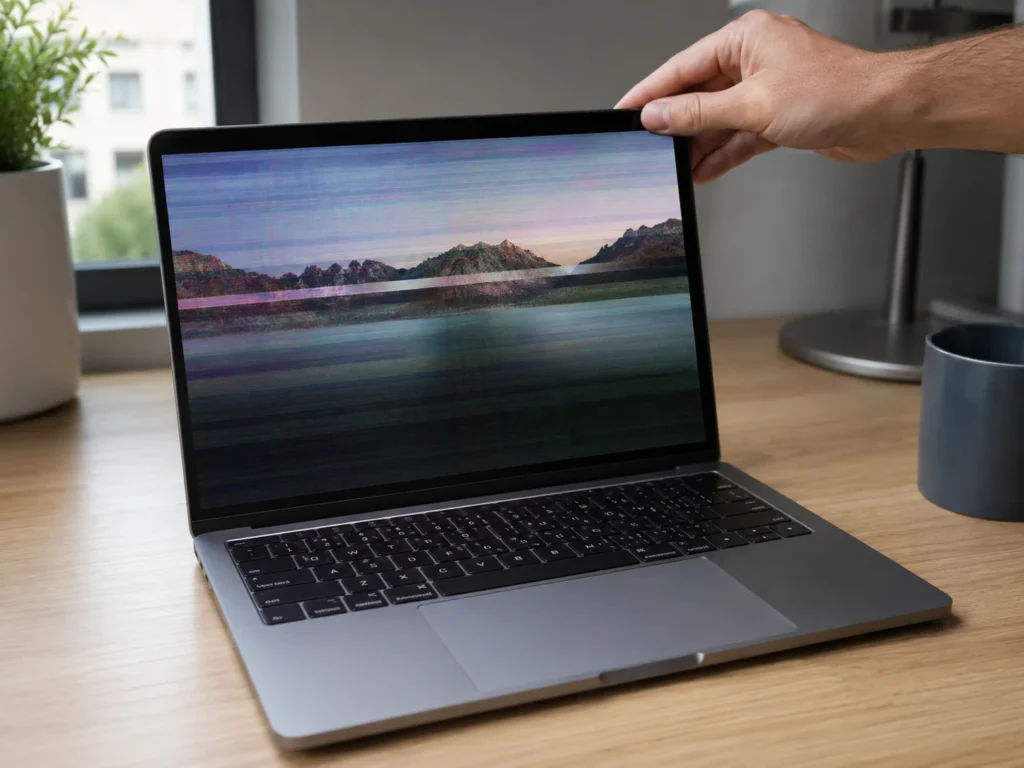
This is especially likely when the screen changes behavior as you move the lid. If the image flickers at certain angles but looks normal at others, the issue may be near the hinge or display cable area. This is not something you want to keep testing aggressively. Repeatedly moving the lid to “find the good angle” can make the issue worse. Classic tech temptation, bad strategy.
4. Liquid Damage or Corrosion
Liquid damage is one of the more serious reasons for MacBook display flickering. Even a small spill can reach internal components. Coffee, tea, juice, and soda are especially risky because they can leave residue behind. The MacBook may still turn on for a while, but corrosion can continue developing internally.
If your MacBook screen started flickering after a spill, do not keep using it as normal. Bring it in for a proper inspection. Profix Cell offers MacBook water damage repair for devices exposed to liquid, including inspection for corrosion, board-level problems, and display-related issues.
Liquid damage can affect more than the screen. It may also impact the keyboard, battery, charging system, speakers, trackpad, or logic board. That is why a flickering screen after a spill should be treated as an urgent warning sign, not just a display annoyance.
5. Battery Swelling or Power Issues
A failing or swollen battery can create pressure inside the MacBook and affect nearby components. In some cases, users may notice trackpad lifting, keyboard unevenness, bottom case separation, sudden shutdowns, or display behavior that seems unstable.
Apple explains that users can check battery condition in macOS Battery settings, and a “Service Recommended” message means the battery has reduced ability to hold charge or is not functioning normally. You can read Apple’s battery guidance here: Check the condition of your Mac laptop’s battery.
If your MacBook screen flickers and you also notice battery swelling, shutdowns, charging problems, or poor battery life, it is worth checking the device quickly. Profix Cell provides MacBook battery replacement for common battery issues, including reduced battery life, slow charging, sudden shutdowns, and service battery warnings.
6. Charging or Power Delivery Problems
Some MacBook display issues appear when the laptop is plugged in, charging, or connected to accessories. A bad charger, damaged USB-C port, unstable power delivery, or internal charging issue can create strange symptoms.
If the screen flickers only when charging, test carefully with a known compatible charger and cable. Do not force a damaged charging port or use cheap, questionable chargers. If the MacBook also has charging issues, Profix Cell offers MacBook charging repairs, including charging port inspection and internal charging system diagnosis.
Quick Checks You Can Try Before Bringing It In
Before assuming the worst, there are a few safe checks you can try. These steps are not repairs. They are basic ways to narrow down whether the problem may be software-related or hardware-related.
| Check | Why It Helps | When to Stop |
|---|---|---|
| Restart the MacBook | Clears temporary software glitches | If flickering continues immediately |
| Update macOS | May fix software or display-related bugs | If the MacBook is unstable or shutting down |
| Try Safe Mode | Helps isolate some software conflicts | If screen flickers before macOS loads |
| Disconnect accessories | Rules out docks, hubs, monitors, and cables | If flickering happens with nothing connected |
| Check with external display | Helps compare built-in display vs graphics output | If you are unsure how to test safely |
You can also use Apple Diagnostics to help check for some hardware issues. Apple Diagnostics is useful, but it does not catch every possible problem. A MacBook can still have a display cable issue, liquid damage, or intermittent fault even if diagnostics do not give a clear result.
Can You Fix a Flickering MacBook Screen Yourself?
For basic software checks, yes. Restarting, updating macOS, testing Safe Mode, disconnecting accessories, and checking display settings are reasonable first steps.
But opening the MacBook is different. Modern MacBooks are compact, delicate, and not very forgiving. Screen assemblies, batteries, cables, and logic board components require the right tools and experience. One wrong move can turn a screen issue into a bigger repair bill. That is not a vibe.
Here is a simple way to think about it:
- Safe to try: restart, software update, Safe Mode, external monitor test, removing accessories.
- Be careful: repeated lid movement, pressure on the screen, using damaged chargers, continuing after liquid exposure.
- Do not DIY: screen replacement, battery removal, board cleaning, liquid damage repair, connector repair, micro-soldering.
For more detail on why modern Apple laptop repairs can get complicated quickly, you can read Profix Cell’s guide on why DIY MacBook repairs often fail.
When Your MacBook Needs Professional Diagnosis
A flickering screen should be checked professionally if the issue keeps returning, gets worse, or appears with other symptoms. You should avoid waiting too long if the MacBook has been dropped, exposed to liquid, overheating, or showing battery swelling.
Bring the MacBook in if you notice:
- The screen flickers when the lid moves
- There are lines, black spots, or distorted areas
- The display works sometimes and fails other times
- The MacBook was exposed to liquid
- The battery looks swollen or the trackpad feels raised
- The device shuts down randomly
- The MacBook only works on an external monitor
- The screen goes black but the keyboard or fan still turns on
Professional diagnosis matters because the screen is not always the root problem. A technician may need to check the display assembly, internal cables, battery condition, charging behavior, liquid damage indicators, board-level components, and software behavior before recommending the right repair.
Repair Options for MacBook Screen Flickering
The right repair depends on what is causing the flicker. A proper diagnosis helps prevent replacing the wrong part.
| Possible Cause | Possible Repair Option |
|---|---|
| Software or macOS issue | Software troubleshooting, updates, settings review, reinstall if needed |
| Damaged LCD or screen assembly | MacBook screen replacement or LCD repair |
| Loose or damaged display connection | Internal inspection and display connection repair |
| Liquid damage | Water damage cleaning, corrosion inspection, board-level repair if possible |
| Battery swelling or power issue | Battery replacement and internal safety inspection |
| Logic board or graphics-related issue | Board-level diagnosis and repair options |
If you are unsure whether your repair may be covered by Apple or another warranty, Apple has a general product service and repair information page where users can review repair and warranty-related information for Apple products. For out-of-warranty repairs, local diagnosis can help you compare your options before committing to a repair.
What to Expect During Diagnosis at Profix Cell
When you bring a flickering MacBook to Profix Cell, the goal is not to guess. The goal is to find the most likely cause and recommend the right next step.
A typical diagnosis may include:
- Checking when the flickering happens
- Inspecting the screen for LCD or physical damage
- Testing the display at different angles
- Checking whether the MacBook works with an external monitor
- Reviewing signs of liquid exposure or corrosion
- Checking charging behavior and battery condition
- Looking for signs of swollen battery pressure
- Testing whether the issue appears before or after macOS loads
This is especially helpful because two MacBooks can show the same symptom but need different repairs. One may need a screen replacement. Another may need liquid damage cleaning. Another may have a battery or board-level issue. Same symptom, different villain.
How to Avoid Making the Flickering Worse
While you are deciding what to do next, avoid anything that could increase the damage.
- Do not press on the screen to “fix” the flicker.
- Do not keep opening and closing the lid to test the angle.
- Do not continue using the MacBook after liquid exposure.
- Do not use a swollen battery or force the bottom case closed.
- Do not use damaged chargers or cables.
- Back up your files if the MacBook is still working.
If the MacBook is still usable, backing up your files is smart. If it is flickering badly, shutting down randomly, or showing signs of liquid damage, avoid pushing it too hard. A short diagnosis is better than turning a repairable issue into a full logic board situation.
Why Choose Profix Cell for MacBook Screen Flickering Repair?
Profix Cell works with MacBooks, iPhones, iPads, Samsung phones, and other devices from one Toronto repair location. For MacBook users, that means you can get help with screen problems, battery issues, charging problems, water damage, broken LCDs, software concerns, and more.
Customers choose Profix Cell because the repair process is straightforward. You can explain the issue, bring the device in for diagnosis, and get guidance on the repair options before moving ahead. No mystery. No unnecessary drama. Just proper troubleshooting and practical repair advice.
If your MacBook screen is flickering, start with the safe checks above. If the problem continues, visit Profix Cell for MacBook repair. You can also check specific services like MacBook screen repair, MacBook battery replacement, MacBook water damage repair, and MacBook charging repair.
Frequently Asked Questions About MacBook Screen Flickering
Why is my MacBook screen flickering?
Your MacBook screen may flicker because of software issues, macOS display settings, a damaged screen, a loose display connection, liquid damage, battery swelling, charging problems, or board-level failure. The exact cause depends on when the flickering happens and whether there are other symptoms.
Does screen flickering mean I need a new MacBook screen?
Not always. Some flickering issues are software-related or connected to power, battery, or internal board problems. However, if the screen has lines, black spots, distortion, or flickers when the lid moves, the display assembly or LCD may need repair.
Can I keep using my MacBook if the screen is flickering?
You may be able to use it temporarily if the issue is minor, but it is not a good idea to ignore it. If flickering is caused by liquid damage, battery swelling, or a failing display connection, continued use can make the problem worse.
What should I do first if my MacBook screen starts flickering?
Restart the MacBook, disconnect accessories, check for macOS updates, and see whether the issue happens in Safe Mode. If the problem continues, appears before macOS loads, or happens when moving the lid, professional diagnosis is recommended.
Can liquid damage cause MacBook screen flickering?
Yes. Liquid exposure can affect the display, internal connectors, battery, charging system, and logic board. If the flickering started after a spill, stop using the MacBook and have it inspected as soon as possible.
How long does MacBook screen repair take?
Repair time depends on the MacBook model, the part needed, and whether the issue is limited to the screen or connected to deeper internal damage. A diagnosis is the best way to confirm turnaround time.
Will my data be safe during MacBook repair?
Screen repairs and hardware diagnostics usually do not require erasing your data, but it is always smart to back up your files if the MacBook is still working. If the device is unstable, mention that when you bring it in.
Is it worth repairing a flickering MacBook screen?
In many cases, yes. If the MacBook is still in good condition and the issue is limited to the display, battery, charging system, or repairable hardware, fixing it may be more cost-effective than replacing the laptop. The best answer depends on the model, age, condition, and repair estimate.
Get Your MacBook Screen Checked in Toronto
A flickering MacBook screen is not something to ignore, especially if the issue is getting worse, appears after a spill, or changes when you move the lid. Start with safe basic checks, but do not force the device or attempt internal repairs without the right tools.
For professional help, visit Profix Cell for MacBook repair. The team can inspect the issue, explain the likely cause, and recommend the most practical repair option for your device.